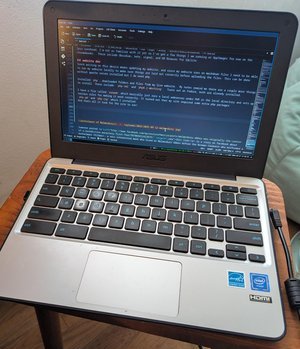
The last time I wrote about these chromebooks was in 2022 but its certainly not the last time I've used them! These old devices have been in constant rotation since then however recently I've tired of the Arch / EndeavourOS rolling-release upgrade mill and it was time to make a change. It seemed that I was spending much more time upgrading and inevitably fixing the things that broke in the upgrade than I was actually using the devices for anything. By the time I had sorted out everything to make it usable again, all desire to write anything had dissipated.
A word about these old chromebooks: they are slow. The ASUS C202S is from 2017 running an Intel N3060 Celeron also known as Braswell chip. This thing gets a measly 654 CPUMark score as of the writing of this post in late 2026. That's abysmal, but they were designed to run one application: the chrome browser, not a full up desktop environment. Still, these devices were built well because they were intended for use in schools so they held up pretty well (at least mine have) and with some careful selections of operating system and tools they can run a modern linux OS and be pretty useful still.
Perhaps the recent price increases in RAM and hard drive have driven some to investigate how useful an older device can be with a modern Linux OS and I'm here to report that if you're willing to learn your way around a more minimal interface you can absolutely build yourself a usable little device for pretty cheap. I see these things going for anywhere between $15 and $40 on ebay these days. Be aware that most of the innards are soldered on the board - you're not going to be upgrading these easily or at all. You're going to have to be happy with 4GB RAM and a 16GB internal flash drive, though there is an SD card slot for extra storage. Even light gaming is a struggle on these and while youtube videos will play, its not a particularly enjoyable experience. The best use cases are text editing, some light image editing, web browsing (if you block ads), podcast and internet radio audio streaming, a terminal for ssh into other linux machines, maybe some light email.
In this post I'm just going to share my notes for the things I did to get mine set up under Fedora 44. The programs and setup I used are based around the decision to use the i3 window manager which is a light weight tiling window manager. This might instantly put you off since if you're unfamiliar with it, it can be a little intimidating. While I admit it takes a little time to get used to, it saves a ton of space on the tiny drive and if you intend to to anything you'll need some space. Its also super fast which helps a great deal on this slow hardware. I did spend a little time with IceWM which is also very lightweight and has more traditional windows-like elements, the choice for i3 was easy for me - I've used it before so there's a bit of muscle memory and its more keyboard-centric which is really the best way to use a tiny little 11.6" device like this. That said, I use a wireless mouse too and a lot of the program choices were driven by the desire to use a pointer.
None of this would be possible (for me anyway) without the amazing work by MrChromebox and as I originally stated in my 2022 post there's no point in repeating his excellent documentation here detailing how to replace the original firmware with an open custom coreboot firmware that will allow us to boot alternate operating systems. The process was simple and it worked and now I can choose to boot from any live distro on USB and install a fresh OS whenever I want.
Reminder, what follows are just the notes I took in the order I did stuff as a reference:
initial install
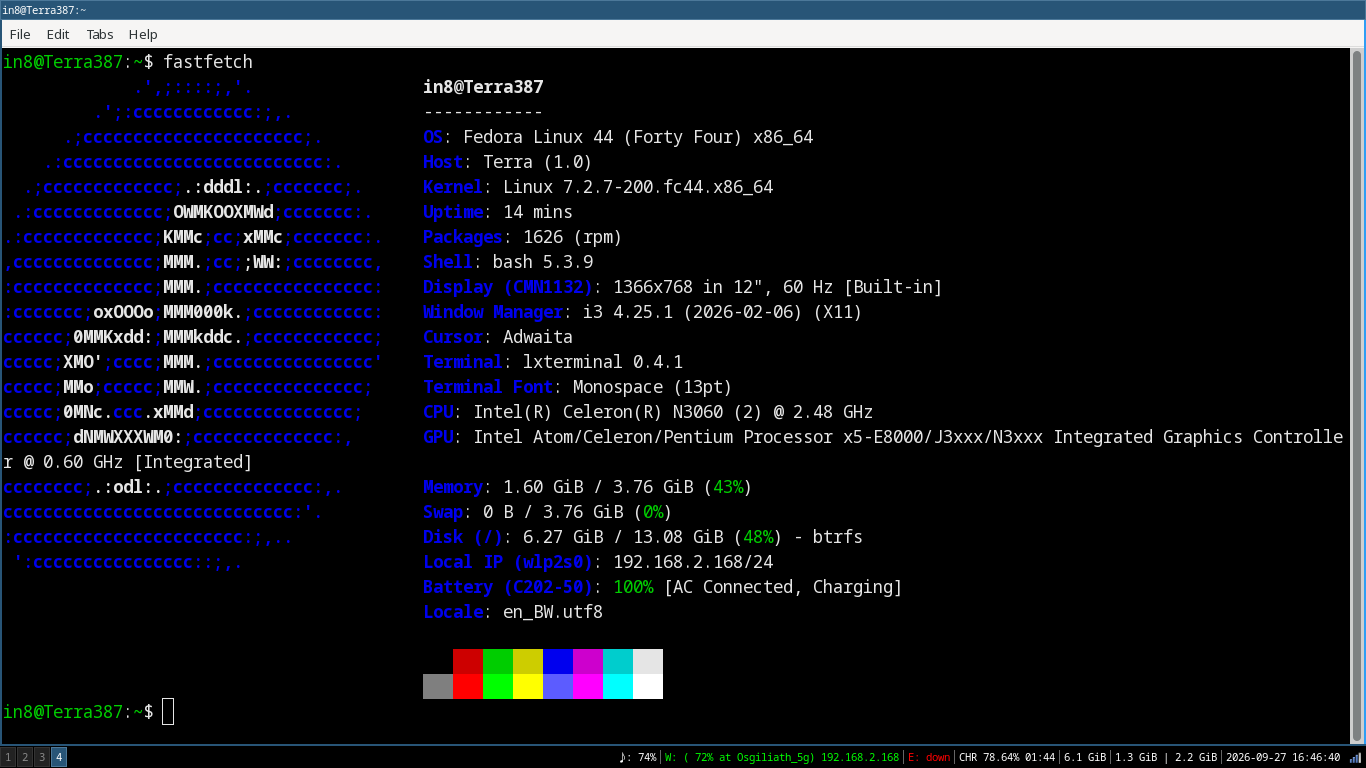
Installed Fedora 44 on one of the ASUS C202S chromebooks.
I used the "everything" ISO (which is basically their net install as its only 1GB in size) and selected only X Windows with no other environment or apps selected. I tried out Openbox, icewm and ratpoison (briefly) but settled on i3. Out of the box their i3 has a ton of useful info in the tray already, and as I have all the muscle memory from using it on one of these for years with Arch and the goal is to keep space available, I switched to i3. I am using the lightdm display manager so I could easily add and select another window manager to launch if I want.
Since this chromebook is only a 16GB device, with KDE plasma which I had installed on another one, I quickly ran out of space such that eventually updating would fail. To be fair it seemed like half the time it would fail because I waited too long between updates. After initial install with some personal repos checked out, firefox, and some other apps I had 8.6GB free.
dnf
Fedora's package manager seems to work very much like debian's apt - use dnf instead of apt but for the most part its still just linux. Nothing has stopped me yet anyway.
lxterminal
Before much work could get done I needed a decent terminal and I've been using lxterminal at work so that got installed and set to monospace regular 13 font. The main reason for this is because I want to more easily select text with a touchpad / mouse and configure the terminal colors and font. Its very usable.
To edit config files I of course need to install vim. no hate please.
mc recompile
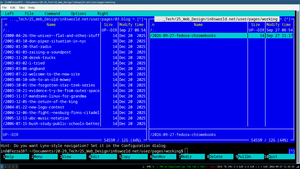
The first issue I ran into was mc. I need my version of mc to be able to do sftp but Fedora doesn't ship mc with that enabled and "won't fix" it. In any case I was able to download all the build requirements and the source, change the config file to add --with-sftp, compile it into an rpm and install it and it works now with sftp. Since I might want to do this again someday I'll list my commands here:
sudo dnf install dnf-utils rpmdevtools libssh2-devel glib2-devel e2fsprogs-devel libselinux-devel
rpmdev-setuptree
rpmcheckout mc || dnf download --source mc
rpm -ivh mc-*.src.rpm
sudo dnf install autoconf automake gcc gettext-devel gpm-devel libtool make perl-generators pkgconfig
sudo dnf install 'pkgconfig(slang)'
vim mc.spec
rpmbuild -bb mc.spec
sudo dnf remove mc
sudo dnf install ~/rpmbuild/RPMS/x86_64/mc-*.rpm
On the other machine which I'm setting up exactly the same (mostly to test my notes) I didn't need to do this, I just copied the RPMS folder over and ran the last command to install the recompiled mc
brightnessctl
Before much work could be done I absolutely needed to fix the brightness and volume buttons. The default screen brightness is way too bright to look at for long. I wanted to map the chromebook's standard brightness and volume buttons and since they are actually just function keys I mapped as F6 (brightness down), F7 (brightness up), F8 (mute), F9 (volume down), and F10 (volume up). I fixed this in the i3 config so if I later decide to use a different window manager I'll have to revisit it, but installing brightnessctl and adding this to the bottom of the .config/i3/config file and restarting i3 with $mod Shift r (my $mod is set to "alt" as Mod1) did the trick:
# Screen brightness controls
bindsym F7 exec --no-startup-id brightnessctl set +3%
bindsym F6 exec --no-startup-id brightnessctl set 3%- --min-value=1
volume buttons
# Audio volume controls
bindsym F10 exec --no-startup-id pactl set-sink-volume @DEFAULT_SINK@ +3%
bindsym F9 exec --no-startup-id pactl set-sink-volume @DEFAULT_SINK@ -3%
bindsym F8 exec --no-startup-id pactl set-sink-mute @DEFAULT_SINK@ toggle
tap to click
X doesn't do tap to click on the touchpad out of the box so I had to create:
/etc/X11/xorg.conf.d/90-touchpad.conf with
Section "InputClass"
    Identifier "touchpad"
    MatchIsTouchpad "on"
    Driver "libinput"
    Option "Tapping" "on"
EndSection
and restart X which enabled it.
aerc
I installed and copied over my aerc config which took care of the couple email addresses I like to check (not gmail but it gives me a way to send and get email anyway) but quickly realized I needed a way to view (and do some quick edits) of images since aerc is a terminal based email client. The smallest utility I could find that worked well was gThumb. I've found this is more powerful than I thought at first and serves well to review folders of images.
Obsidian
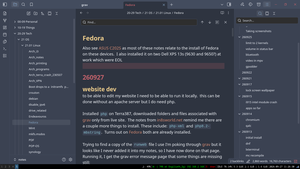
Obsidian was installed as an AppImage in my bin folder. A .desktop file in .local/share/applications doesn't actually seem required to make it available in my i3's $mod d listing (Fedora's i3 has dmenu all set up already) because the AppImage is available in it without the file. Obsidian required fuse and fuse-libs to run.
git
git was pre-installed and I set up my config for user.name and user.email so I could check this in (which I originally wrote in Obsidian btw). note: I don't write blog posts in Obsidian though, more on that later.
firefox
Firefox (not -esr) is installed on one of the chromebooks and works fine. The other one I chose to install chromium instead just to compare. This old chromebook is not super fast but its fast enough to play youtube and test the audio (working)
mpv
A couple other programs installed include mpv (with a Gemini-assisted bash script: mpv_radio.sh (I might share that later) to listen to audio streams (mainly for listening to op25 which I run separately on my NUC but also WFUV and other streams) and installed btop to keep an eye on things.
power management
One issue that came up was with power management. After closing the lid I'd be presented with a grey screen and it wasn't clear if the screen was actually turning off when I shut the lid or not. Switching to another virtual terminal with ctrl alt f3 for example and back with ctrl alt f1 did not resolve it. I tried one possible solution with:
sudo grubby --update-kernel=ALL --args="intel_idle.max_cstate=1 i915.enable_dc=0" but in a test after rebooting it happened again? The culprit is xss-lock which has several arguments --transfer-sleep-lock -- i3lock --nofork the last of which is supposed to fix that. After a go-around with Google's Gemini I have a script saved as:
~/.config/i3/lock.sh
#!/bin/bash
# Lock screen with black background and force display sleep
i3lock --nofork --color 000000 &
LOCK_PID=$!
sleep 1
xset dpms force off
wait $LOCK_PID
which required the install of xset
and is called on the i3 config file as:
exec --no-startup-id xss-lock --transfer-sleep-lock -- ~/.config/i3/lock.sh
after a reboot, I can confirm that the screen is going black when I shut the lid and when re-opened I have a black screen with no obvious prompt but if I type my password as soon as I start to type the first letter a green circle comes up indicating input is happening. I can unlock and it works.
lock screen
I set up a bindsym to F5 to run that command as $mod+F5 so I could manually lock the screen.
wallpaper
This can't be done by gThumb because that just passes it off to the desktop manager and i3 isn't that and doesn't draw things to the screen. Instead I decided to use feh which can not only view images but also has options to set the wallpaper so after proving that it worked I added this line to the bottom of the i3 config file:
exec --no-startup-id feh --bg-fill /home/myuser/Pictures/Wallpapers/mywallpaper.jpg
chromium
Installed chromium on one of the chromebooks and signed in with google creds and it does seem to run a bit faster than in firefox for gmail/maps/youtube/gemini which I like to do on occassion.
qalc
Installed qalc and will test as a calculator solution - so used to GUI calculators that using one in the terminal is strange but it does seem to work. I've been using a TI-85 emulator on all my machines (and android) for so long its a little strange, but qalc has a feature to show real time evaluation which is neat.
i915 intel module crash
Found on Terra385 that if I left it sit for long enough that the screen blacked, it wouldn't wake up. But it actually did according to Gemini's look at the logs - i915 module crashed and the machine was actually up just not displaying anything. Powering it off by tapping the power button did a clean shutdown. Its first proposed fix was to add something to this line:
GRUB_CMDLINE_LINUX="rhgb quiet i915.enable_psr=0"
in /etc/default/grub but that did not resolve the issue and i915 would still crash.
Next, it had me add this file: /etc/X11/xorg.conf.d/20-intel.conf
with the following:
Section "Device"
    Identifier  "Intel Graphics"
    Driver      "modesetting"
    Option      "AccelMethod" "glamor"
EndSection
and after a reboot that seemed to work!
lock screen wallpaper
Changed the lock screen background by editing
/etc/lightdm/lightdm-gtk-greeter.conf
to add:
background=/usr/share/backgrounds/mylockscreen.jpg
under the [greeter] section.
note, I had to move that image into that location because lightdm can't access user folders.
limit to 2 kernels
Space is critical on these machines since its so limited. I don't want to keep more than the current kernel and the last one available in an emergency.
edited /etc/dnf/dnf.conf
and added under the [main] section:
installonly_limit=2
It wasn't until after I was completely set up that I realized that limiting the number of kernels kept didn't do anything for me since the default fedora install created a separate /boot partition of 2GB. Even if I only ever used about 500MB it would always take up that space. I was able boot the machines up with an ubuntu live usb drive (ver 26.04) and run sudo gparted on it, shrink the /boot partition to 1GB and expand the linux partition by that amount. Current drive sizes:
lsblk
NAME         MAJ:MIN RM  SIZE RO TYPE MOUNTPOINTS
mmcblk0      179:0    0 14.7G  0 disk
├─mmcblk0p1  179:1    0  600M  0 part /boot/efi
├─mmcblk0p2  179:2    0    1G  0 part /boot
└─mmcblk0p3  179:3    0 13.1G  0 part /home
                                      /
mmcblk0boot0 179:8    0    4M  1 disk
mmcblk0boot1 179:16   0    4M  1 disk
zram0        251:0    0  3.8G  0 disk [SWAP]
volume in status bar
I wanted the volume on the status bar. Up to now I hadn't touched that configuration but to do so I copied the standard i3 status config out to my home config and edited that. I took the opportunity to remove a couple things I didn't need to see on the status bar before adding volume.
  mkdir -p ~/.config/i3status
  cp /etc/i3status.conf ~/.config/i3status/config
Edited that config file and commented out load and ipv6 and added:
order += "volume master"
and then below the order listing:
volume master {
        format = "♪: %volume"
        format_muted = "♪: muted (%volume)"
        device = "default"
        mixer = "Master"
        mixer_idx = 0
}
This works great but note it does allow you to raise the volume far above 100%. Gemini says this because in i3 we're looking directly at the hardware unlike full desktops like Gnome or KDE which cap the volume. "PipeWire and its WirePlumber session manager natively allow hardware "amplification" and digital boosting past 100%"
bluetooth
Also discovered these C202s have bluetooth! In i3 there's no GUI utility for it and instead of looking for one I decided to use the terminal just to confirm its working at all.
lsusb | grep -i bluetooth
returns
Bus 001 Device 002: ID 8087:0a2a Intel Corp. Bluetooth wireless interface
then systemctl status bluetooth indicates the service is running
bluetoothctl gets you into the the bluetooth command mode
and then a series of commands to turn it on and scan (I've replaced the actual MAC address with MACADDRESS)
[bluetoothctl]> list
Controller MACADDRESS hostname [default]
[bluetoothctl]> power on
Changing power on succeeded
[bluetoothctl]> agent on
Agent is already registered
[bluetoothctl]> default-agent
Default agent request successful
[bluetoothctl]> scan on
SetDiscoveryFilter success
Discovery started
[CHG] Controller MACADDRESS Discovering: yes
...
It saw my soundbar, I used scan off to stop scanning
[bluetoothctl]> pair MACADDRESS
Attempting to pair with MACADDRESS
[CHG] Device MACADDRESS Connected: yes
[CHG] Device MACADDRESS Bonded: yes
...
[CHG] Device MACADDRESS ServicesResolved: yes
[CHG] Device MACADDRESS Paired: yes
Pairing successful
and then I connected:
[bluetoothctl]> connect MACADDRESS
Attempting to connect to MACADDRESS
[CHG] Device MACADDRESS Connected: yes
[NEW] Endpoint /org/bluez/hci0/dev_MACADDRESS/sep1
[NEW] Endpoint /org/bluez/hci0/dev_1MACADDRESS/sep2
[NEW] Transport /org/bluez/hci0/dev_MACADDRESS/sep1/fd0
Connection successful
and instantly I have sound coming out of the sound bar! then I trusted it:
[TY-WSB600]> trust MACADDRESS
[CHG] Device MACADDRESS Trusted: yes
Changing MACADDRESS trust succeeded
video in mpv
Trying to play a mp4 video with mpv I got an error that ffmpeg couldn't decode hvec? I ended up running the following when I tried to install libavcodec-freeworld it failed and Gemini suggested a better solution is to use the following:
sudo dnf clean all
sudo rm -rf /var/cache/dnf
sudo dnf upgrade --refresh
sudo dnf swap ffmpeg-free ffmpeg --allowerasing
mpv can play a local video file (a 2.6GB movie) though its obviously right at the edge of its abilities and it has a nice control bar at the bottom. I'd say that in a pinch you can watch a video that someone emails you but if your primary use case is watching movies this is not the device for it.
gpodder
Since Antennapod is not available on anything but android, they suggested gpodder as an alternative. Its got a clunky old school interface, and its written in python so its not super fast but it seems to work well.
https://gpodder.github.io/
I installed with sudo dnf install gpodder since its in the repos
associating image filetypes with gthumb
I found images were opening in the browser and not gthumb as desired. I found there was already a file:
~/.config/mimeapps that had some entries obviously entered automatically. I edited it to add the image types at the bottom which fixed it up nicely. When I open an image file from mc it opens in gthumb and from there I can browse all other images in that folder easily.
[Default Applications]
...
image/png=org.gnome.gThumb.desktop
image/jpg=org.gnome.gThumb.desktop
image/gif=org.gnome.gThumb.desktop
Taking screenshots
Based on another gemini suggestion as well as past experience with it, I installed scrot and added another little section to the bottom of my i3 config file to take screenshots using the F4 key (since I'm already using F5 for locking the screen) and save them into a particular folder:
# Take screenshots
bindsym $mod+F4 exec scrot "/home/myuser/Pictures/Screenshots/%Y-%m-%d_%H-%M-%S.png"
bindsym $mod+Shift+F4 exec scrot "/home/myuser/Pictures/Screenshots/%Y-%m-%d_%H-%M-%S.png" -s
kate
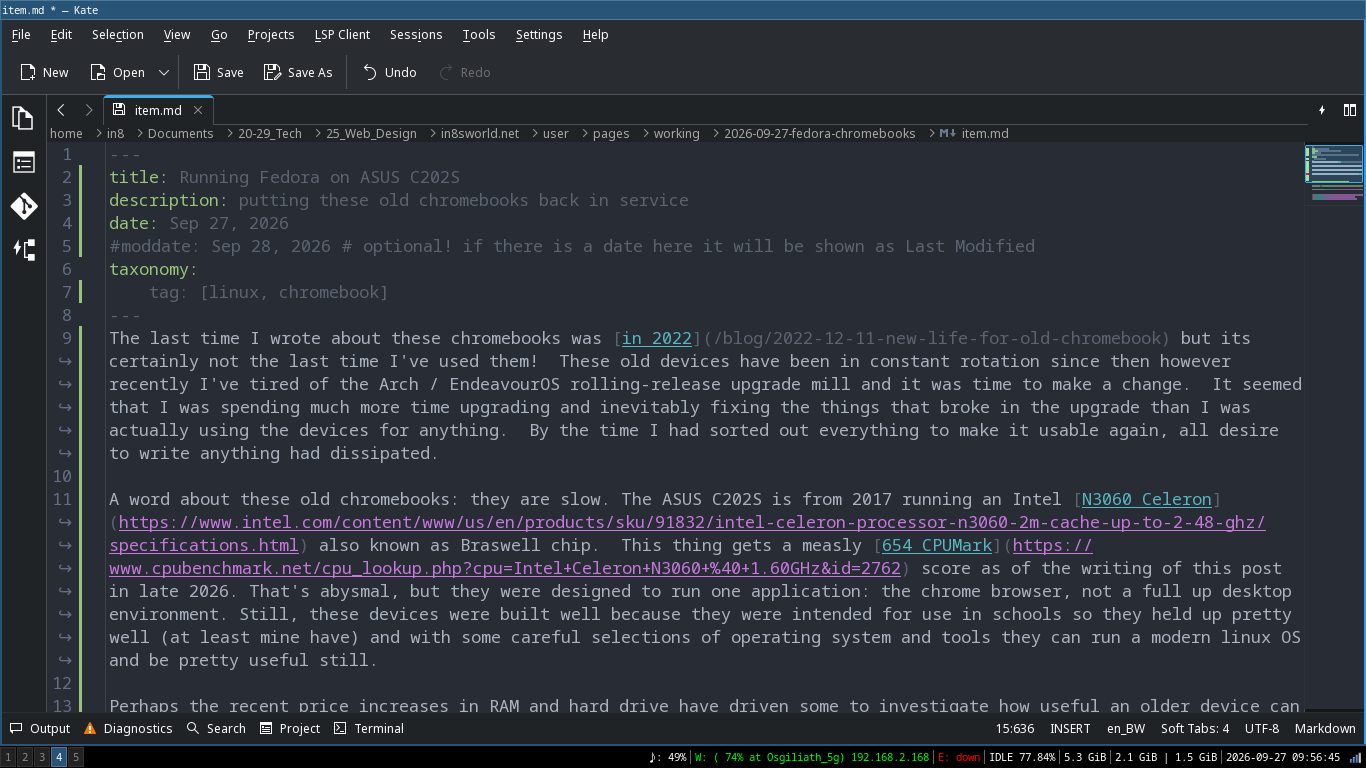
For basic text editing (like writing this blog post), I simply can't function without kate. With its built in support for git I can even check in files to my repos and perform diffs on files. The syntactical highlighting is key as well. While I take notes in Obsidian generally, whenever I have a standalone editing task its kate that I open. I didn't want to install all the KDE libraries though so I am running it as an AppImage.
AppImages
While Fedora would prefer that I use Flatpack, and there seems to be a case to be made for it for space saving and less overhead, I'm not as familiar with it yet so I've got a few things I am running as AppImages for now on the chromebooks. These include Obsidian, kate, signal, and DB Browser for SQLlite.
website dev
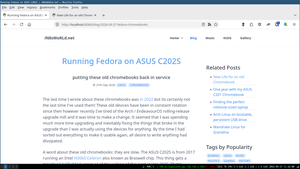
Since writing on this device means updating my website, and since my website runs on markdown files I need to be able to run my website locally to make sure things are laid out correctly before uploading the files. This can be done without apache server installed but I do need php.
Installed php, downloaded folders and files from my live website. My notes remind me there are a couple more things to install. These include: php-xml and php8.2-mbstring. Turns out on Fedora, both are already installed.
I have a file called runweb which basically just runs a local webserver under PHP in the local directory and sets up various rules for making it work correctly. It turned out that my site required some extra php packages:
php-gd and php-zip which I installed.
And thats all it took for the site to run!
RSS Feed